








TL;DR: Learning how to animate GIFs is faster than most people expect. Free tools like Canva, Kapwing, and Ezgif make it easy to create branded animations in minutes. And if you need ongoing GIF production at scale, Penji handles it for you.
To animate a GIF, you need source material (images or a short video clip), a free tool like Canva, Kapwing, or Ezgif, and a few minutes to assemble and export.
Upload your assets, apply animation settings, and download the file as a .GIF. Most tools finish the job in under ten minutes.
GIFs have been around since 1987, but they never really went away. Social posts, email headers, digital ads, website banners.
Animated GIFs show up everywhere brands want to grab attention without producing a full video.
If you’ve been wondering how to animate GIFs without hiring a motion designer or learning complex software, you’re in the right place.
This guide covers the best free tools available in 2026, what you’ll need before you start, and when it makes more sense to let someone else handle it.
What Do You Need Before You Start Animating GIFs?
Most people skip this step and then wonder why their GIFs look rough. The quality of your output depends almost entirely on what you bring into the process.
You’ll need source material. That’s either a short video clip or a series of still images. Videos are the fastest path, clip a few seconds, convert, and you’re done. Still images take more planning since each one becomes a frame in the animation.
You also need to decide on dimensions before you start. A GIF for Instagram Stories is a different size than one for a website banner or an advertisement design campaign. Getting the aspect ratio right upfront saves a lot of resizing later.
Finally, pick your tool. The right one depends on your source material and how much editing you need. The five best options are covered below.
How Do You Animate GIFs with Free Online Tools?
The good news: you don’t need to download anything or pay for software to learn how to animate GIFs. These five tools cover most use cases, and all of them are free to start.
Canva
Canva is the most accessible option for building a GIF from scratch. Open a new design, set your canvas dimensions, then add your text, images, or branded elements.
Select any element and click Animate in the top menu to choose from a range of motion styles. When you’re happy with the result, click Share, then Download, and set the file type to GIF.
Canva also handles video-to-GIF conversions. Upload your clip, drag it to the canvas, trim to the frames you want, and export. It’s the fastest option if you’re repurposing existing video content into a short looping format.
Kapwing
Kapwing is a browser-based video editor that handles GIF animation well, especially for more complex sequences. Upload your video or images, arrange them on the timeline, then add text overlays or transitions as needed.
The timeline view gives you more precise control over timing than Canva does. Export as GIF when you’re finished. No download required.
Veed
Veed works similarly to Kapwing but includes a larger library of pre-built animated elements you can drop directly into your project. That makes it faster if you’re layering branded graphics on top of existing video footage. Upload your content, select elements to animate, apply the animation style, and export as GIF. You’ll need a free account to download.
Adobe Express
Adobe Express lets you animate GIFs from scratch or by converting a video. The scratch option gives you access to Adobe’s template library, which works well for typography-based animations.
One thing to know: Express exports animated files as MP4, not GIF, so you’ll need a converter like Ezgif for the final step. It’s an extra move, but the design quality often justifies it.
Ezgif
Ezgif is the most straightforward tool on this list. It works best when you already have edited images or video and just need to convert them into an animated GIF.
Upload your video, set the start and end times, adjust the frame rate and dimensions, and convert.
For a sequence of still images, use the alphabetical upload mode so frames stay in the right order. Ezgif also has a built-in optimization feature that keeps file sizes manageable, which matters for page load speed.
What Makes a GIF Actually Work for Your Brand?
Knowing the mechanics of how to animate GIFs is one thing. Making a GIF that performs is something else entirely.
Keep them short. GIFs that loop every two to three seconds tend to hold attention better than longer clips. Think of them like a billboard, the message needs to land fast.
If someone has to watch five seconds before understanding what you’re showing, the creative isn’t doing its job.
File size matters more than most people realize. A GIF that takes several seconds to load actively hurts your user experience. Ezgif’s optimizer and Canva’s built-in compression both help here. For web use, aim for under 2MB. For email, shoot for under 1MB.
Brand consistency counts too. Match your fonts, colors, and logo placement to the rest of your graphic design services assets. A GIF that looks off-brand does more damage than no GIF at all.
According to a Litmus email marketing report, animated GIFs in email can lift click-to-open rates by up to 26%. (⚠️ Flag for editorial verification before publishing.) That’s a meaningful number for any team using email as a primary channel.
When Does It Make More Sense to Outsource GIF Animation?
DIY tools are great for occasional projects. But if you’re running motion graphics campaigns, producing social content on a weekly schedule, or building out a full library of brand animations, doing it yourself gets expensive in time very quickly.
Sourcing footage, editing frames, optimizing file sizes, and keeping everything on-brand takes longer than the tools make it look. That’s before revision rounds enter the picture.
This is where Penji comes in. Penji’s designers handle animated GIF production as part of a flat monthly subscription.
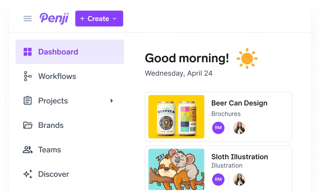
Submit a request through the dashboard, describe what you need, and get production-ready GIFs back within one to two business days.
There’s no need to master free graphic design software or spend hours on work outside your main role.
For teams producing content at volume, the trade is straightforward: less time, more consistent output, and branding that holds up across every format.
Animated GIFs are one of the more accessible formats in digital marketing. The tools are free, the process is learnable in an afternoon, and the payoff in engagement is real.
Canva and Ezgif will get most people there fast. But if GIF production is part of a bigger creative workflow, knowing how to animate GIFs yourself is just the starting point.
At some point, the smarter call is having a team handle it so you can stay focused on running your business.
That’s what Penji works looks like in practice.
See what Penji can do for your brand. Browse plans and get started today.
Frequently Asked Questions
What’s the best free tool to animate GIFs for beginners?
Canva is the easiest starting point for most people. The interface is familiar, animation controls are easy to find, and you don’t need any design background to get a clean result. If you’re working from a video file and want more timeline control, Kapwing is worth trying once you’re comfortable with the basics.
How do you keep a GIF file size small enough for web use?
Frame rate and dimensions are the two biggest levers. Lower the frame rate to around 10 to 15 frames per second and scale the canvas down as small as your layout allows. Ezgif has a built-in optimizer that reduces file size without a visible drop in quality, and Canva applies compression automatically on export. For web use, aim for under 2MB. For email, under 1MB is the safer target.
Can you animate GIFs without downloading any software?
Yes. All five tools covered here, Canva, Kapwing, Veed, Adobe Express, and Ezgif. They run entirely in the browser. Nothing to install. The one exception: Adobe Express exports animated files as MP4, so you’ll need to run the file through Ezgif or a similar converter to get a proper GIF. It’s a quick step but worth knowing upfront.
What kinds of GIFs can Penji create for my brand?
Penji produces a wide range of animated GIF content, including social media posts, banner ads, email headers, product showcases, and typography animations. You submit a request through the Penji dashboard with your specs and reference materials, and a designer returns a production-ready file within one to two business days. Revisions are included until the output matches your brief exactly.